Minecraft: Java Edition is legendary for its massive mods, custom multiplayer plugins, and complex survival servers. While Minecraft Bedrock (App Store version) exists for iPhones and iPads, it lacks the depth of the true PC ecosystem.
Thanks to PojavLauncher, you can cross the platform divide and run the complete Java Edition environment natively on your iOS device.
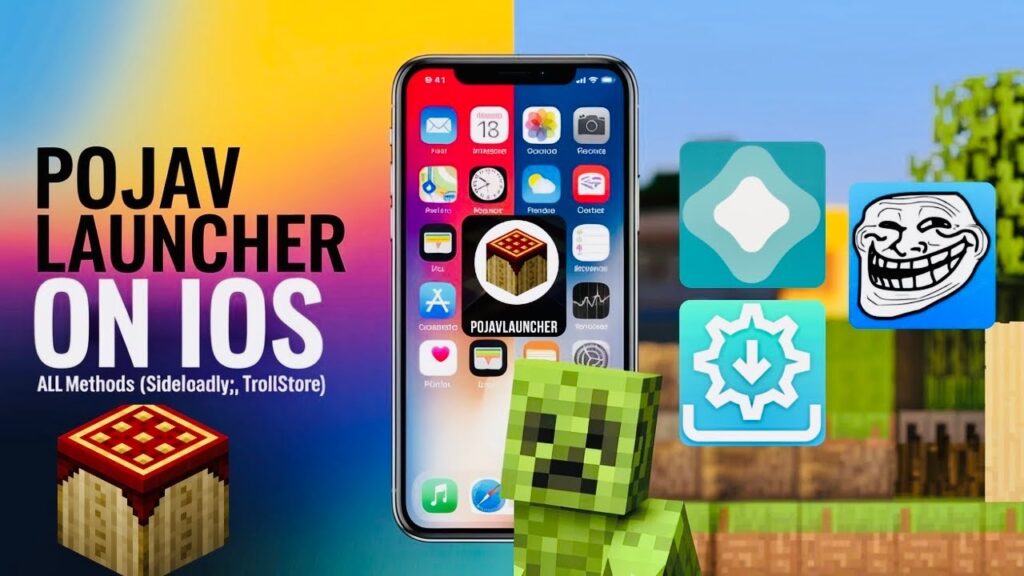
Because iOS is a highly locked-down operating system, the installation process requires a bit more care than a standard app install. However, you do not need to jailbreak your device. This step-by-step guide will walk you through setting up PojavLauncher on iOS safely using modern sideloading tools.
iOS Device Requirements & Preparations
Because Java Edition relies heavily on real-time code translation, it is more demanding on iOS hardware than typical mobile games.
| Requirement | Minimum Specification | Recommended Specification |
| Operating System | iOS 12.0 or higher | iOS 15.0 to iOS 17.x or newer |
| Hardware Device | iPhone 8 / iPad Air 3 | iPhone 13 / iPad Pro (M1/M2) or newer |
| System RAM | 3 GB | 4 GB to 8 GB (M-series iPads excel here) |
| Sideloading Tool | AltStore / Sideloadly | TrollStore (If on compatible iOS versions) |
🔴 The Crucial Step: Understanding JIT (Just-In-Time) Compilation
Unlike Android, Apple restricts apps from compiling code on the fly. To get playable frame rates (above 5 FPS) in Java Edition, you must enable JIT compilation. This guide covers how to activate JIT using AltStore, which is the most reliable method for standard iOS users.
Step 1: Install AltStore on Your Device
To sideload PojavLauncher without a jailbreak, you need an app management framework. AltStore uses your personal Apple ID to sign the app locally.
- On a home computer (Windows or Mac), download and install AltServer from the official AltStore website.
- Connect your iPhone or iPad to your computer using a USB cable.
- Open AltServer on your computer:
- On Windows: Click the AltServer icon in the system tray, select Install AltStore, and choose your device.
- On Mac: Click the menu bar icon, select Install AltStore, and choose your device.
- Enter your Apple ID and password when prompted (this sends your credentials directly to Apple to generate a free developer certificate).
- Once installed, the AltStore app icon will appear on your iOS home screen.
💡 Fixing the Untrusted Developer Error: Before opening AltStore on your phone, go to Settings ➔ General ➔ VPN & Device Management. Tap your Apple ID under “Developer App” and select Trust.
Step 2: Download the Official PojavLauncher IPA
Now that your sideloading gate is open, you need to fetch the application package format used by iOS devices.
- Grab your iPhone or iPad and open Safari.
- Navigate to the official PojavLauncher project landing page or verified distribution repository.
- Download the latest stable PojavLauncher .IPA file. Save it directly to your device’s native Files app.
Step 3: Sideload PojavLauncher via AltStore
- Open the AltStore app on your iOS device.
- Ensure your phone is on the same Wi-Fi network as the computer running AltServer (or keep it connected via USB).
- Head to the My Apps tab at the bottom and tap the “+” icon in the top-left corner.
- Browse your files, select the downloaded
PojavLauncher.ipafile, and let the installation progress bar finish. - Once completed, PojavLauncher will appear inside your app library and on your home screen!
Step 4: Activating JIT Compilation (Required for Play)
If you launch the app right now and try to load Minecraft, it will either freeze on a black screen or crash due to memory limits. You must enable JIT first.
How to turn on JIT using AltServer (Computer Method):
- Keep your iOS device plugged into your computer (or verified on the same local Wi-Fi network).
- Ensure the computer’s AltServer program is actively running.
- On your computer, click the AltServer icon, hover over Enable JIT, and click your connected device.
- Select PojavLauncher from the list.
- PojavLauncher will automatically launch on your phone with JIT fully active and unlocked!
Step 5: Log In and Play Java Edition
Once the launcher opens on your screen, configuring your profile mirrors the desktop experience perfectly:
- Sign In: Tap the profile panel, select Microsoft Account, and complete the official OAuth secure web login. (Alternatively, select Local Account for offline play).
- Create a Profile: Tap the version selection tray. Select a stable mobile target like 1.16.5 or 1.20.1.
- Launch the Game: Press PLAY. The app will securely download official game assets directly from Mojang’s directories.
Once the loading screens complete, the standard PC Main Menu will render behind an overlay of custom, fully functional touch-control inputs.
Pro-Tips for iOS Performance Optimization
- The 7-Day Refresh Rule: Free Apple Developer accounts only allow sideloaded apps to remain active for 7 days. To prevent the launcher from expiring, simply open AltStore while on your home Wi-Fi network once a week and tap Refresh All.
- Resolution Scale Tuning: Inside PojavLauncher’s internal menu preferences, slide your Resolution Scaling down to 80%. This preserves your battery life and keeps high-end Retina displays from overheating.
- Render Distance Boundaries: Keep your in-game video settings render distance at 4 to 6 chunks. Java Edition’s chunk rendering behavior is incredibly demanding on mobile processors.
Frequently Asked Questions (FAQ)
Do I have to connect my phone to the computer every time I want to play?
Only when you launch the app from a completely closed state to trigger JIT compilation. If you leave PojavLauncher running in the background apps switcher, you can lock your phone, go about your day, and reopen it later without connecting to your computer.
Can I install resource packs and world saves on iOS?
Yes! Inside PojavLauncher’s app settings, you can access the integrated internal file manager. From there, you can drop folder directories straight into the local .minecraft/resourcepacks/ or .minecraft/saves/ paths.
Are you experiencing a JIT connection error or an app installation failure inside AltStore? Let us know your iOS version in our contact portal below, and we’ll help you debug your setup!