Minecraft: Java Edition looks beautiful on its own, but adding custom shaders takes the game to a whole new level. Shaders introduce realistic lighting, moving tree leaves, volumetric clouds, and gorgeous water reflections.
Thanks to PojavLauncher’s advanced rendering capabilities, you don’t need a high-end desktop gaming rig to experience this. You can run real Java shader packs right on your mobile phone display.
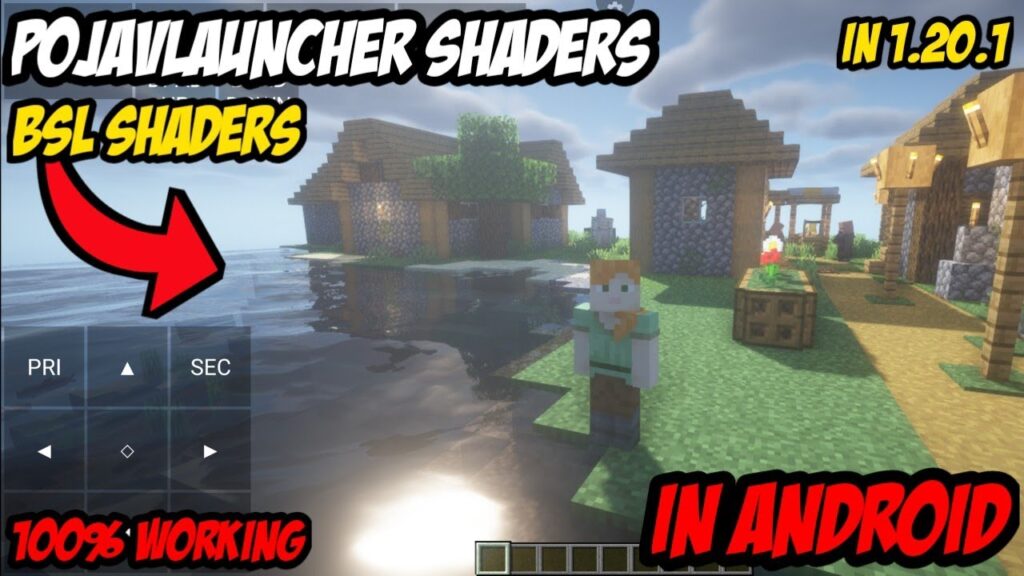
Because shaders change how your graphics hardware renders light, setting them up on a smartphone requires specific optimization mods and video render settings. This step-by-step tutorial will show you exactly how to get shaders working smoothly in PojavLauncher without melting your device.
🛠️ Step 1: Install the Necessary Mod Frameworks
Standard vanilla Minecraft doesn’t support shader files natively. To load them, you need a mod engine that opens up a shaders menu interface.
While you can use OptiFine on older versions, the absolute best and most high-performance setup for modern versions of Minecraft (1.16.5 to 1.20+) is using Fabric.
- Install the Fabric Loader on your PojavLauncher profile (refer to our complete mod installation guide if you haven’t done this yet).
- Download these two essential Fabric mods and drop them into your device’s internal
.minecraft/mods/directory:- Sodium: Hyper-optimizes your game graphics engine to give you the extra frame rate headroom needed to run shaders.
- Iris Shaders: The dedicated mod engine that allows Sodium to read, load, and configure modern desktop shader packs.
⚙️ Step 2: Choose the Correct Video Renderer
Shaders rely heavily on mobile graphics chip translation layers. Before launching your Fabric profile, you must ensure PojavLauncher is using a rendering engine that can handle advanced lighting codes.
- Open PojavLauncher and tap the Settings (gear icon).
- Select Video Settings or scroll to your graphics configuration panel.
- Switch your primary video renderer to Vulkan (ANKV) or Holy GL4ES.
- Tip: Vulkan is highly recommended for shaders on modern devices because it communicates directly with your mobile GPU for fast, efficient performance.
📦 Step 3: Download and Move Your Shader Packs
Because your mobile processor is significantly smaller than a dedicated desktop graphics card, you cannot run heavy ultra-shaders (like SEUS Renewed or Continuum) at playable frame rates. You need to download packs explicitly optimized for low-end hardware.
Recommended Mobile-Friendly Shader Packs:
- Complementary Shaders (Unbound or Reimagined): Highly compatible, gorgeous, and comes with an internal “Potato” or “Low” profile preset built specifically for lower-end hardware scales.
- Chocapic13’s Toaster Edition / Low: Built from the ground up to render clean lighting profiles on minimal performance boundaries.
- Sildur’s Vibrant Shaders (Lite / Medium): Offers amazing, colorful volumetric lighting with incredibly lightweight performance optimization loops.
How to place them in your game directories:
- Download your chosen shader pack
.zipfile (do not extract or unzip it!). - Open your mobile phone’s File Manager app and locate the downloaded zip.
- Copy or move the file into the following path on your storage partition:
Android/data/net.kdt.pojavlaunch/files/.minecraft/shaderpacks/- Note: If the
shaderpacksfolder doesn’t exist inside your hidden.minecraftdirectory, simply create a new folder and name it exactlyshaderpacks(all lowercase).
- Note: If the
🎮 Step 4: Activate Shaders In-Game
Now everything is set up to turn on the new visuals inside your game profile!
- Open PojavLauncher, select your Fabric profile, and tap PLAY.
- Once you reach the main menu, navigate to Options ➔ Video Settings ➔ Shader Packs.
- You will see your downloaded zip profiles displayed neatly in a list layout.
- Tap your preferred pack to select it, then click Apply or Done.
- Load into your world save file and enjoy the view!
🌡️ Pro-Tips to Prevent Low FPS and Overheating
Running heavy desktop lighting scripts will warm up your phone quickly. Use these optimization passes to keep your frames smooth and stable:
- Lower Your Shadow Distance: Inside your in-game Shader Pack Settings, look for the Shadow Distance or Shadow Resolution parameters and slide them down to 0.5x or 1x. Rendering real-time shadows eats up more processing power than any other feature.
- Scale Your Resolution Profile Down: Ensure your main launcher resolution setting is locked around 70%–75%. Running shaders at full display pixel density will cause immediate thermal throttling lag spikes.
- Cap Your Frame Rate: Lock your maximum framerate settings to 45 FPS or 60 FPS. This prevents your GPU from working unnecessarily hard and extends your active battery life.
Are your shader files failing to show up in your settings drawer or causing a sudden open-source engine crash? Drop your mobile device model and the name of the shader pack you are trying to configure below, and we’ll help you get it running!