Playing Minecraft: Java Edition on a PC offers unparalleled freedom with its massive multiplayer servers, complex modpacks, and beautiful custom shaders. But what if you want to take that exact desktop experience on the go?
Enter PojavLauncher. This powerful, open-source utility acts as a translation layer, allowing you to run official Minecraft: Java Edition configurations directly inside your Android operating system.
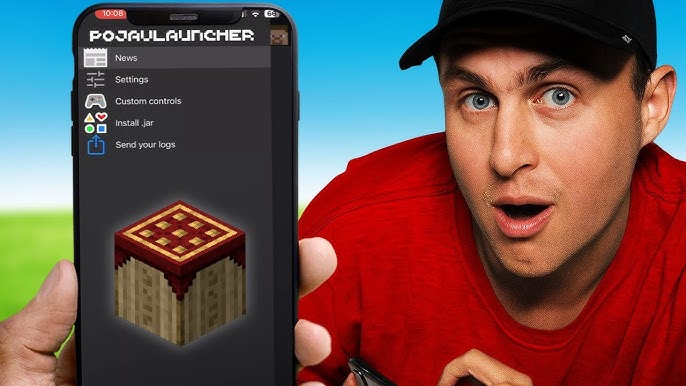
Whether you want to connect to a massive SMP server or load up a lightweight vanilla world on your phone, this comprehensive, step-by-step guide will walk you through installing and configuring PojavLauncher for optimal stability.
Android Device Requirements
Before jumping into the installation phase, verify that your specific hardware meets the minimum baselines to ensure a playable frame rate.
| Requirement | Minimum Specification | Recommended Specification |
| Operating System | Android 5.0 (Lollipop) or higher | Android 10.0 or newer |
| Processor (CPU) | 64-bit Architecture (ARM64/x86_64) | High-end Snapdragon / Dimensity |
| System RAM | 3 GB | 6 GB or higher |
| Storage Space | 2 GB free (Vanilla game files) | 5 GB+ (For heavy mod/world files) |
Step 1: Download the Official PojavLauncher Build
While older versions of PojavLauncher reside on the Google Play Store, the absolute latest features, security patches, and rendering pipelines are distributed directly by the development team online.
- Open your mobile browser and navigate to the official repository landing hub.
- Locate the latest stable Android Package (.APK) release.
- Tap Download APK and save the installer to your device’s internal local download folder.
⚠️ Security Note: Never download modified PojavLauncher binaries from third-party unverified file-sharing forums. These modified files can put your official Microsoft account credentials at risk.
Step 2: Enable Installation from Unknown Sources
Because you are installing the application package directly via an APK format layer rather than an integrated app store, Android security systems require toggling an execution permission.
- Navigate to your device’s primary Settings menu.
- Go to Apps & Notifications ➔ Special App Access ➔ Install Unknown Apps (this path may vary slightly depending on your phone’s software skin).
- Select the web browser or file manager application you used to save the APK file.
- Toggle the switch to Allow from this source.
Step 3: Extract and Install the Application Package
- Launch your mobile phone’s built-in File Manager utility.
- Tap into your Downloads directory and select the newly fetched
PojavLauncher.apkpackage. - Press Install and wait for the verification pipeline to complete.
- Tap Open to initialize the main launcher dashboard environment.
Step 4: Authenticate Your Minecraft Account
PojavLauncher is not a pirated software utility. It acts as a clean interpreter framework, meaning you must possess a valid, officially purchased copy of Minecraft to boot into the game assets.
When the application opens, you will be greeted with the account creation wizard:
Option A: Using an Official Microsoft Profile (Recommended)
- Tap the Add Account dropdown widget on the setup panel.
- Select Microsoft Account.
- A secure official Microsoft OAuth browser prompt will display automatically.
- Enter your registered email address and secure password passphrase.
- Once verified, PojavLauncher safely stores your session token locally.
Option B: Using a Local Offline Profile
- Select Local Account.
- Type an arbitrary username string into the box.
- Tap login to enter the menu framework without authentication.
💡 Note: Local offline profiles can only access split offline worlds or customized local LAN servers that have security authentication checks disabled.
Step 5: Choose Your Game Version and Launch
Once your profile registers, your account alias will display safely at the top of the interface.
- Look for the Version Select block on the central display.
- Choose Create New Profile or click the dropdown to pick your preferred Minecraft iteration.
- Tip: For mobile setups, Version 1.16.5 or 1.20.1 provide the stablest performance sweet-spots.
- Tap the primary PLAY button.
- PojavLauncher will now safely communicate with official Mojang asset servers to sideload all required game jars, code assets, and sound frameworks.
Once the data completes loading, an interactive on-screen touch virtual controller layer overlay will activate, and the primary Mojang loading layout will reveal itself on your mobile display.
Quick Optimization Tips for Your First Launch
If the title experiences stuttering or visual lag during its first boot sequence, open your settings sprocket inside the application menu to apply these immediate adjustments:
- Lower Resolution Scale: Slide your overall Resolution Scaling parameter down to roughly 70%–80%. This reduces the rendering load on your device’s GPU while keeping text completely legible.
- Allocate Safe RAM Boundaries: Never allocate your full phone memory pool to the launcher, or your mobile OS will force-close the process. Setting your allocation slider to 1500MB–2500MB works best for standard mobile platforms.
- Switch the Video Renderer: For newer devices, selecting the Vulkan or GL4ES rendering engines will significantly increase your overall frames-per-second (FPS).
Frequently Asked Questions (FAQ)
Can I play on Hypixel and other big PC servers?
Yes! Since you are authenticating via an official Microsoft token system, you can connect to real multiplayer PC environments like Hypixel, Mineplex, or private SMP servers using your on-screen inputs.
Is PojavLauncher safe to enter my password into?
Absolutely. The application relies entirely on secure OAuth validation systems. Your private passwords are never read, stored, or transmitted to outside servers; validation occurs directly inside Microsoft’s own cloud architecture.
Stuck on a specific error code or experiencing a crash during asset loading? Leave a detailed description in our contact portal below, or verify your memory allocations inside the launcher profile panel!